Creality Falcon on Mac: Software, Setup & Your First Engrave
Published: October 30, 2026
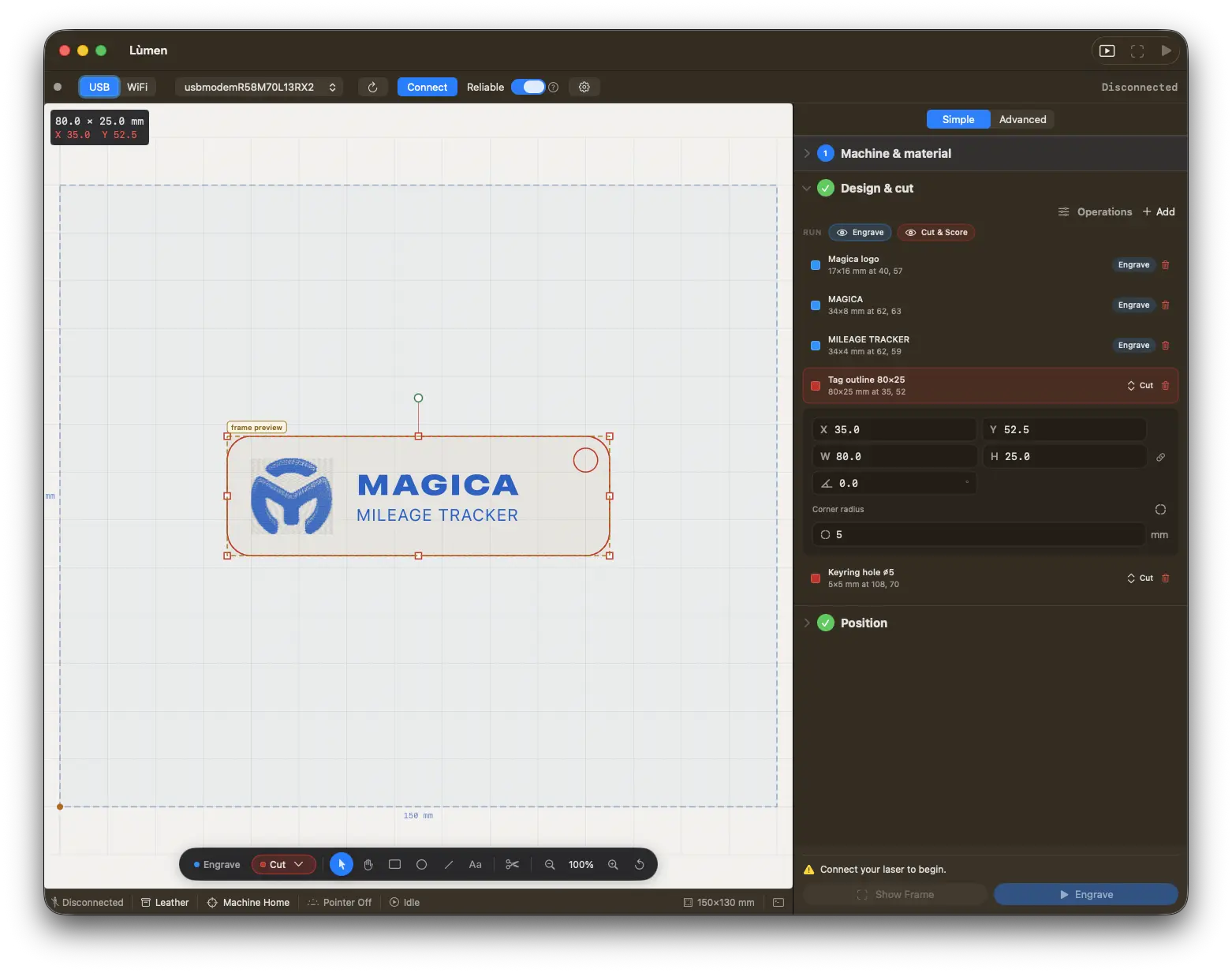
Lùmen has the Creality Falcons built in
The CR-Laser Falcon, Falcon Pro, Falcon2, Falcon2 Pro and Falcon A1 are in the machine list, each in every power it is sold with. Choosing yours sets the work area, the speed and the laser's power, and the material presets adapt to it. Native macOS, €19.99 one-time, no subscription. 3-day free trial. Requires Lùmen 3.5 or later.
Creality's Falcon line runs from open-frame diode engravers to enclosed machines with a camera. The Falcon gantries are driven over USB with the GRBL protocol, so a Mac can run them with the right software. This guide covers which Falcons Lùmen has built in, which software runs them on macOS, how to connect one and how to get to your first engraving.
The Falcons in Lùmen
| Machine | Laser power | Work area |
|---|---|---|
| CR-Laser Falcon | 5 W, 7.5 W, 10 W | 400 × 415 mm |
| Falcon Pro | 10 W | 400 × 415 mm |
| Falcon2 | 12 W, 22 W, 40 W | 400 × 415 mm |
| Falcon2 Pro (enclosed) | 22 W, 40 W, 60 W | 400 × 415 mm |
| Falcon A1 (enclosed) | 10 W | 381 × 305 mm |
The powers are optical, the light that reaches the material, as Creality states them. Each one is its own entry in the list, written like Creality Falcon2 · 22 W.
400 × 415, not 400 × 400. Most listings round the open-frame Falcons to a 400 mm square. Their controllers report 415 mm of travel in Y, and that is the bed Lùmen draws. When you connect, Lùmen reads the travel from the controller anyway, so the canvas matches your machine even if Creality changes it in a later batch. Creality's manual gives the Falcon2 Pro 60 W a 400 × 400 bed; if yours reports that, Lùmen uses it.
Not in the list yet
- Falcon A1 Pro. It runs a different firmware (grblHAL) and has an autofocus Z axis, and we haven't been able to check how homing behaves on it. Until we have, it isn't built in.
- Falcon A1C. We haven't seen its controller settings yet, and Creality gives two different work areas for it. You can create a custom machine with your work area and laser power.
- Falcon T1 / T1C. These are galvo machines, which steer the beam with mirrors instead of moving the head on rails. Lùmen drives gantry machines only.
Software for the Creality Falcon on Mac
- Falcon Design Space — Creality's own free app, with a macOS version.
- LaserGRBL — free and on Creality's list, but Windows-only. Running it through a virtual machine is unreliable for a real-time serial connection to a laser.
- LightBurn — cross-platform and full-featured, a one-time purchase from $99 (Core) with paid renewals for later updates. See our LightBurn alternative comparison.
- Lùmen — a native macOS app for GRBL laser engravers, €19.99 one-time with free updates and a 3-day free trial. The Falcons above are built in from version 3.5.
Step-by-Step Setup with Lùmen
1. Connect the Falcon
Plug the Falcon into your Mac and switch it on. In Lùmen, pick the port in the connection bar at the top of the window and click Connect. When it connects, Lùmen reads the controller's own settings, the work area and the maximum power value, so they match your machine even before you choose it.
No port in the list? This is the most common problem with a Falcon on a Mac. Some Falcon controllers are not detected when plugged straight into a Mac's USB-C port with a USB-C to USB-C cable, and macOS never creates a port for them. A USB-A cable through a powered USB hub usually fixes it at once. Newer Falcons (Falcon2, Falcon Pro) need no driver on a Mac and show up as a usbmodem port. If the port disappears after the Mac has been asleep, unplug the cable and plug it back in. The full checklist is in our FAQ: my Mac doesn't detect my laser engraver.
2. Choose your Falcon
The first time you open Lùmen it asks which laser you have. Choose your model and power, for example Creality Falcon2 · 22 W, in the first step of the Simple sidebar (Machine & material) or in the Machine section of the Advanced one.
Picking the right power matters more than it looks. Lùmen's material presets were measured on a 3 W laser. With your Falcon selected, Lùmen adapts them to its power, keeping the same energy per millimetre, so a 40 W laser isn't handed settings meant for one a thirteenth as strong. It shows the adapted numbers before you start, as the estimate they are.
A head with a power button. The Falcon2 40 W head has a 20 W precision mode, and the Falcon2 Pro 60 W head switches between 60, 40 and 22 W, from a button on the head. Lùmen can't see that button, so choose the version that matches the mode you work in. For the 20 W mode, save a custom machine at 20 W.
3. Home
The Falcons have limit switches and their controllers have homing switched on, so Lùmen works in Machine Home. It homes before each job, the head finds its home corner, and where your design sits on the canvas is where it lands on the bed. If you'd rather start from the corner of a workpiece, switch to Custom Origin, jog the head there and press Set Zero Here.
4. Import, frame and engrave
Import a photo or a logo (JPG, PNG) to engrave, or an SVG or DXF to cut, choose your material, and place the design on the canvas. Press Frame: the head traces the outline of the job with a faint laser dot, so you can check it on the workpiece. Put on your safety glasses (on an open-frame Falcon), press Engrave (Start in the Advanced sidebar), and the job begins after a 5-second countdown.
Settings for the Falcon
We haven't measured a Falcon ourselves, so this guide doesn't give you a table of numbers. Start from Lùmen's material presets, adapted to your laser, and run the Power/Speed Test Grid (File menu) on a scrap of the material you're going to use: a few minutes, and you have numbers measured on your machine. Our settings guide explains how to read the grid.
Air Assist
The Falcon2 and the Falcon2 Pro have air assist built in. On the Falcon Pro and the Falcon A1 the pump plugs into the machine. Switch on Air assist in Lùmen's machine settings and each job turns the air on at the start and off at the end. On several Falcons the end-of-job command turns the flow down to a low setting rather than off: that is Creality's design, set in the controller's own settings, not something Lùmen controls. The Air off / Air on button beside the switch lets you check the pump before you start. If nothing happens, see air assist not working.
Related Guides
- My Mac Doesn't Detect My Laser Engraver
- How to Engrave Photos on Wood with a Laser
- Laser Engraving Settings: Wood, Leather, Acrylic & More
- Best Laser Engraver Software for Mac
Get Started with Your Falcon on Mac
The Falcon gantries are GRBL machines, and they work on macOS with the right software. Lùmen is a native Mac app with the Falcons built in, a 3-day free trial and a one-time price of €19.99.