Lùmen talks to the engraver’s GRBL controller over USB or Wi-Fi. Before you connect, choose the machine: the bed on the canvas and the material values depend on it. If you don’t have a laser yet, use the virtual laser.
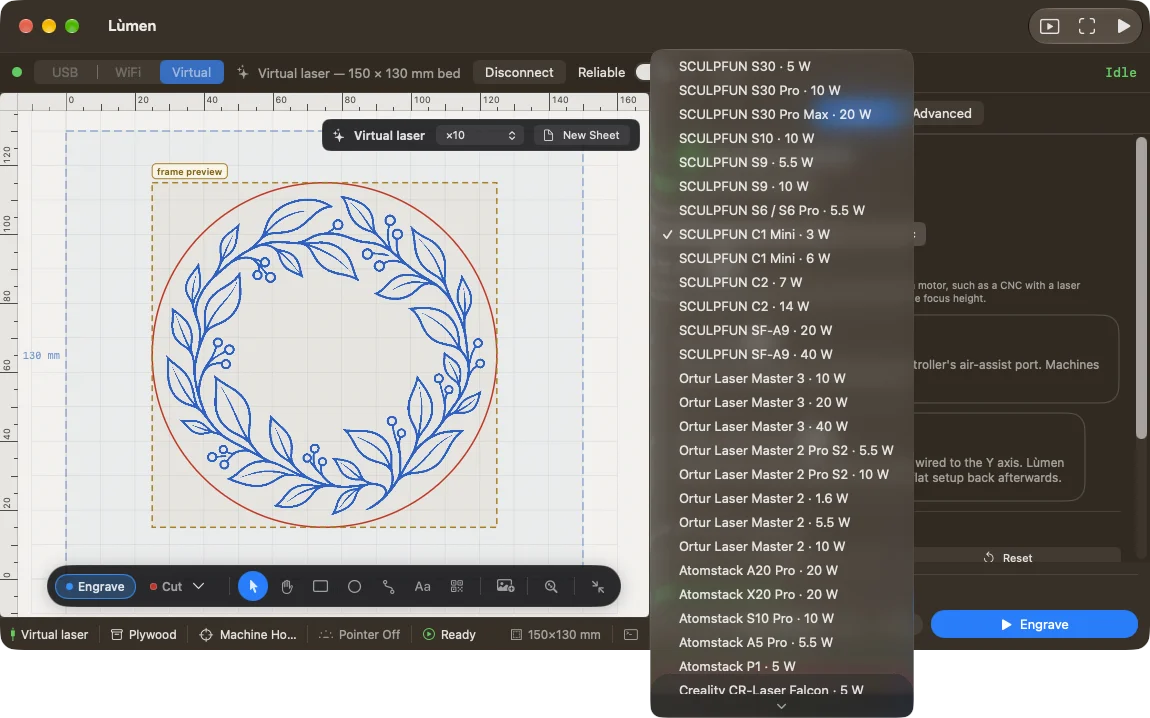
1Choose the machine
In the Machine & material tab (in Advanced, the Machine section) choose your model from the list. If the same model is sold with lasers of different power, choose the one with yours: the optical power is the number Lùmen adapts the materials from. Don’t mistake it for the electrical rating: a laser sold as “40 W” is often 5.5 W optical.
If your machine isn’t in the list, in Advanced enter the work area, Max S, Max F and the laser power, then press the + next to the list to save it under a name.
2Connect over USB
- Switch the machine on and connect it to the Mac with a USB cable that carries data, not just power.
- In the top bar choose USB. The laser appears in the list of devices as soon as the Mac sees it, even if you switch it on after opening Lùmen; ↻ reads the list again.
- Check the controller’s port and press Connect. Lùmen selects it by itself when it’s the port you used last time, or the only USB device on the Mac.
- Once connected, the bar shows the machine’s state (usually
Idle) and the jog controls come alive.
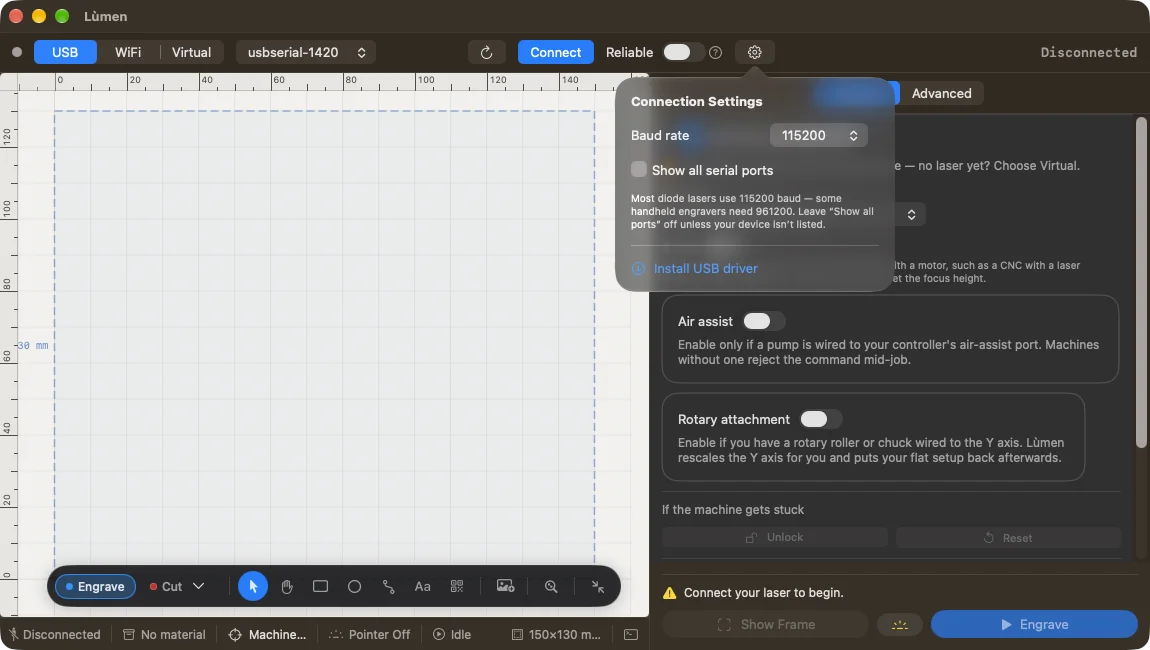
The list only shows ports that look like USB serial adapters. If your controller isn’t there, open the gear next to the bar (Connection Settings) and turn on Show all serial ports. The baud rate is there too: almost every diode laser uses 115200, some handheld engravers 961200.
If no port appears, check the power and the cable; some boards need the maker’s USB serial driver. The checks one by one are in Connection, alarms and console.
Connecting over Wi-Fi
Choose WiFi, enter the machine’s IP address and port, then press Connect. The suggested port is 23; if the network module uses another one, enter that. The network’s name isn’t enough: you need the controller’s address, which you’ll find in the machine’s network settings or in your router.
If Connect stays grey, check that the address isn’t empty and that the port is a number. If it doesn’t connect, check that the Mac and the machine are on the same network.
What Lùmen reads from the machine
As soon as it connects, Lùmen asks the controller for its settings:
- the maximum power (
$30), which Lùmen treats as 100%; - whether the machine can home (
$22), that is, whether it has the limit switches to find its own corner; - the work area (
$130and$131), which it uses unless you entered one yourself. Lùmen never writes it to the machine. - the steps per millimetre (
$100and$101), which Lùmen changes only when you calibrate the axes.
If the controller’s laser mode ($32) is off, Lùmen turns it back on: it is the mode a laser engraver needs.
Reliable mode
The Reliable switch sends one line of G-code at a time and recovers replies the controller loses. Turn it on only if a machine stalls in the middle of a job. On an engraved image, made of a great many short segments, it makes the job much longer and the midtones lighter; if you leave it on with an image to engrave, Lùmen reminds you in the panel. The ? next to the switch explains what it does.
More machine settings
- Z axis: turn it on if the head moves up and down on a motor, as on a CNC with a laser module. Z buttons appear among the jog controls. On an engraver you focus by hand, leave it off.
- Mirrored (in Advanced): for a machine that moves like the mirror image of the screen. Quarter turns are next to the jog arrows. Check with small moves and with Show Frame. To flip just a design, use Flip instead.
- Calibrate Axes…: when a 100 mm line doesn’t come out 100 mm. See Calibrate the axes.
Connected isn’t ready. A connection means Lùmen can talk to the controller. Before you start, choose a material, set the origin and check the placement with Show Frame. To switch to another kind of connection, press Disconnect first.