Lùmen can take directions from an AI assistant, such as Claude, through MCP: the assistant reads the machine’s state and prepares the design, that is, it adds shapes and text, arranges them, chooses the material and looks at a screenshot of the canvas. It never moves the head and never fires the laser: placing the piece and starting the job stay in your hands.
1Turn on AI control
Open Lùmen ▸ Settings… and the MCP tab. AI control needs a license: it isn’t available during the trial. Turn on Enable AI control and check that the status says Running. The server listens on this Mac only (127.0.0.1), on port 8787, which you can change while the server is off. If Error appears, the reason is written just below.
Keep Lùmen open, with AI control on, while you use the assistant.
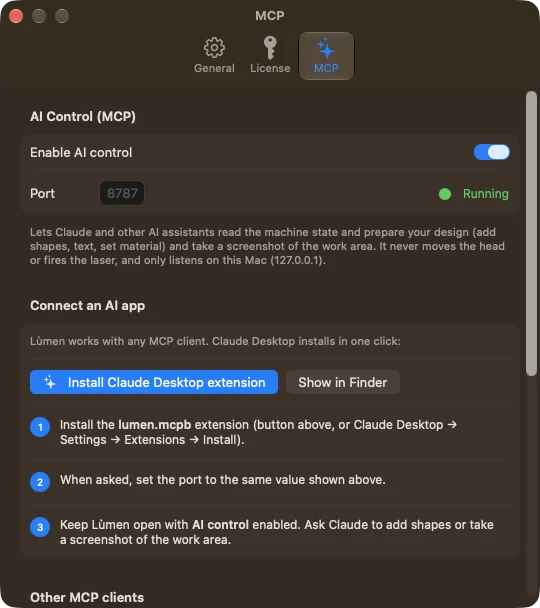
2Connect the AI app
- Claude Desktop: press Install Claude Desktop extension and, if asked, enter the same port you see in Lùmen. Show in Finder shows you the extension’s file.
- Claude Code: the tab shows the command to paste into Terminal, with the right path and port already in it.
- Other AI apps that read a JSON configuration file: the tab shows the text to paste.
The bridge between the AI app and Lùmen ships inside Lùmen; there is nothing else to install. Always use the text your tab shows: the app’s path can differ from one Mac to another.
3Work with the assistant
Ask for concrete things: “add a 60 mm circle in the middle”, “write the name in script under the logo”, “draw a 3 mm outline around everything and put it on the cut”, “make 12 copies in a grid”. The assistant can draw paths, convert, combine and break them apart, flip, repeat in a grid or a circle, create codes and set a cut’s kerf and tabs. Everything goes through the editor’s own checks: if a request can’t be done, the assistant gets an error that says why.
Look at the result in Lùmen and correct it as you would an object you drew yourself. Each change the assistant makes undoes with ⌘Z.
The assistant prepares, you engrave. Before starting, check the project with the preview and Show Frame. The real material, the piece on the bed and the start button stay yours.