On the canvas you can arrange several objects at once: select them, move them to a tenth of a millimetre, align them, repeat them in a grid or a circle, flip them and lock them. Every change to a group undoes with a single ⌘Z.
Selecting
- With the select tool, click an object.
- Drag from an empty area to draw a rectangle: it selects every object it touches.
- ⇧-click or ⌘-click adds or removes an object. ⌘A selects them all, Esc deselects.
With several objects selected there is one box: drag it to move them together, or pull a corner to resize them in proportion. In the panel, enter the group’s exact X, Y, width and height.
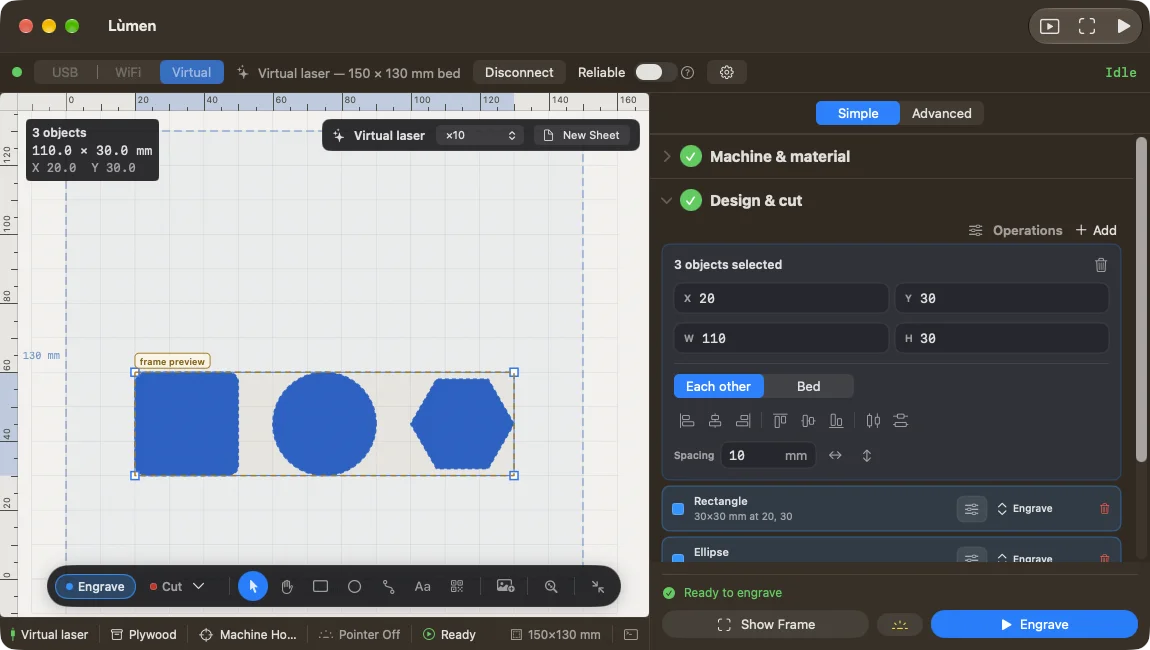
Moving precisely
The arrow keys move the selection by 1 mm; with ⇧ by 10 mm, with ⌥ by 0.1 mm. A quick run of presses undoes all at once with a single ⌘Z.
While you drag, Lùmen snaps edges and centres to those of other objects and, in Machine Home, of the bed, and shows it with a coloured guide. View ▸ Snap to Objects and View ▸ Snap to Grid turn it on and off. Hold ⌘ while dragging to move without snapping.
Aligning and distributing
Select at least two objects and right-click to open Align: edges or centres, horizontally or vertically. In Machine Home there is also Align to Bed, which moves the selection against the bed as one piece.
With three or more objects, Distribute evens out the spaces between them. For an exact distance, enter the Spacing in millimetres in the panel and press the horizontal or vertical button next to it: the first object stays put and the others follow it.
Aligning goes by what you see, rotations and letters included, not by each object’s invisible box.
Repeating in a grid or a circle
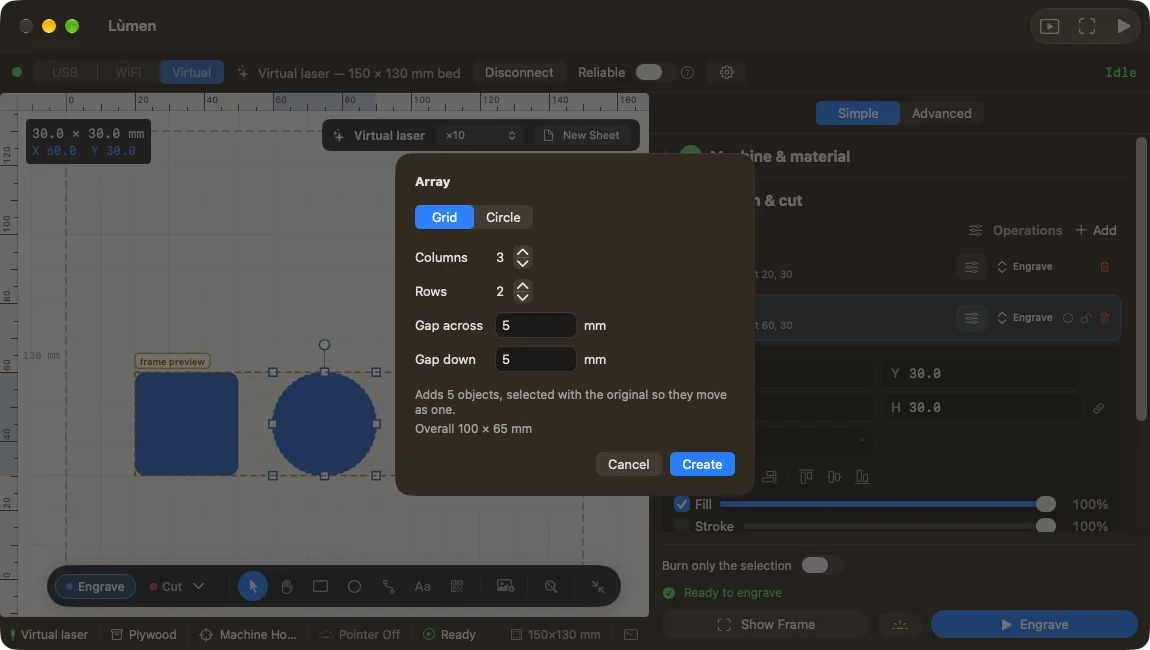
Select the object (or objects) to repeat and choose Edit ▸ Array…, or Array… from the right-click menu.
- Grid: Columns, Rows, Gap across and Gap down. The window shows the overall size: check that it fits on the material.
- Circle: Copies in all and Radius; with Turn each copy with the circle the copies turn like petals. The original stays at the top of the circle and the copies go round clockwise.
Press Create. The original and the copies stay selected, so you move them together, and the whole array undoes in one step. At most 400 copies at a time.
Flipping, duplicating, copying
Edit ▸ Flip Horizontal and Flip Vertical mirror the selection; on the canvas, ⇧H or ⇧V is enough. Mirrored text is how you engrave the back of a clear material. ⌘D duplicates; ⌘X, ⌘C and ⌘V cut, copy and paste objects, between projects too.
Locking, or keeping as a reference
Lock (right-click, or ⇧⌘L) leaves the object on the canvas but it can no longer be selected or moved: clicks pass through it. A padlock appears in its row, where you unlock it; ⌥⇧⌘L unlocks everything.
Reference Only — Don’t Burn keeps the object visible, dimmed, but out of the job. Use it for a guide outline or a photo to trace. You put it back in the job from its row or the right-click menu; if it is locked, unlock it first.
Before cutting an array. Many copies close together are a lot of cutting: look at the preview and run Show Frame over the whole set. The full list of shortcuts is in Keyboard shortcuts.