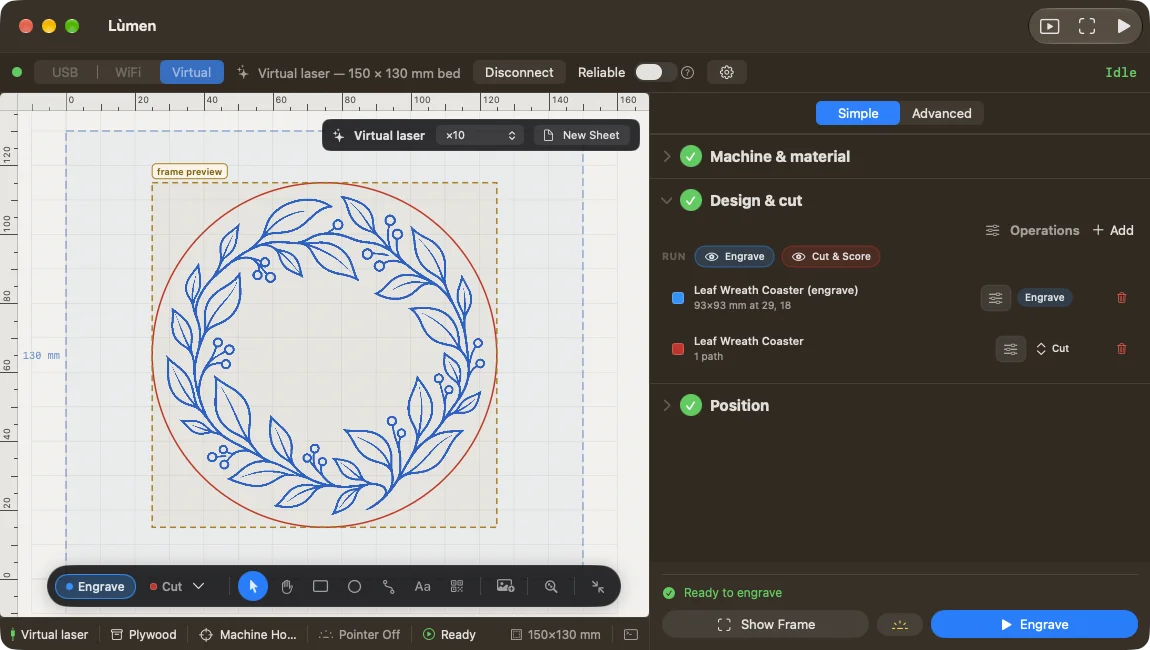
Every object in the project has an operation. Engrave fills areas, line after line; Score and Cut follow outlines. The panel lists the objects in the order they will run, and each row shows its operation.
The list of objects
You find it in Design & cut (in Advanced, the Layers section). Selecting a row selects the object on the canvas, and under the row appear the object’s position, size and settings.
At the top of the list, Add imports an image, an SVG or DXF, a G-code file, or adds shapes, a code or the bed grid. Operations opens the list of score and cut operations: there you create them, rename them, change their values or delete them. If you delete an operation that still has objects, Lùmen asks where to move them.
Assigning an operation
For a drawn shape, choose the operation from the label in its row. A filled shape moved to a cut is followed along its outline; if it goes back to engraving, it gets its fill back. To move a score or cut object you can also drag its row onto another operation, or up and down to change the order.
Who sets the numbers:
- an image has its own engraving parameters, which you open from the button in its row (see Images);
- engraved shapes share the material’s power, speed and resolution; with Fill and Stroke you can make one lighter than the others;
- score and cut objects use their operation’s values: change them from one object’s row and they change for every object in that operation.
An operation’s speed, power and passes
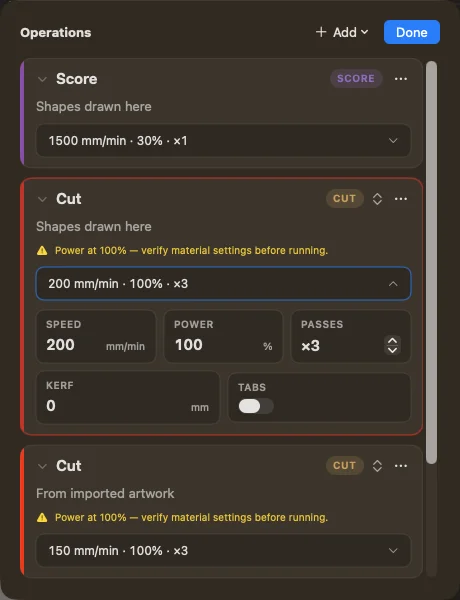
Open Operations and open the operation you want:
- SPEED, in mm/min;
- POWER, as a percentage of the machine’s maximum power;
- PASSES, how many times the path repeats. Thick wood cuts better in several passes than in one slow one.
Kerf and tabs, on cuts only
KERF is the width of material the beam takes away. Enter it and Lùmen moves outer outlines out and holes in by half of it: the cut piece comes out at the size you drew. At zero, nothing is compensated. On the canvas the drawing stays as it is; the compensation shows in the preview.
TABS leave small uncut bridges, so the piece stays in the sheet until you snap it out. Turn the switch on, then choose the bridge’s width and how many millimetres apart they go.
Running only part of the job
When the project has both engraving and scoring or cutting, there are two buttons next to RUN: one for the engraving and one for scoring and cutting. Turn one off to run the other part now and the first one later: the objects stay in the project, dimmed. At least one part always stays on. The preview still shows both parts; the start runs only the ones that are on.
Burn only the selection, next to the start button, limits the job to the selected objects: starting, Show Frame, the preview and the export use only those. It appears when you select part of the project. If you leave it on with nothing selected, Lùmen warns you that there is nothing to burn.
The order is fixed, and it is the right one. Engrave first, then score, then cut: a piece that is already cut free shifts, and whatever was left to engrave would land in the wrong place. Before the real job, look at the preview and use Show Frame.