Lùmen turns an image, a photo or a logo, into lines to engrave. Before it goes into the project you see the original next to the result and choose the size and the conversion. Afterwards it stays an object you can move, resize and adjust.
1Load the file
- Choose File ▸ Import Image (Engrave)… (⇧⌘I), or Add ▸ Import image… at the top of the list of objects.
- Drag the file into the window, or press Choose Image…. PNG and JPEG are the safest choice; BMP and TIFF work too.
- In Size enter the Width or the Height in millimetres: the other follows, in proportion. If the image is bigger than the bed, Fit to work area brings it inside.
2Choose the conversion
In Conversion choose the Mode:
- Dithering: renders greys with dots on and off. The choice for photos.
- Grayscale (S-value): changes the laser’s power with the tone. It works on materials that show different powers well.
- Threshold (B&W): splits black from white, to engrave or to leave. The choice for logos, lettering and crisp drawings; the Threshold slider (0 to 255) sets where the line falls.
With dithering, choose the Algorithm: Floyd-Steinberg, Atkinson, Burkes, Jarvis-Judice-Ninke, Sierra, Sierra Lite or Stucki. Each scatters the dots its own way; compare them on the preview. Brightness and Contrast update the preview as you move them. Look at the small details above all: they must stay readable at the real size.
3Set the engraving and load
In Engraving you find Resolution (lines per millimetre), Feed Rate, Max Power, Min Power, Overscan and Bidirectional. They start from the chosen material’s values. Change a few at a time, watch the preview and press Generate & Load.
Don’t copy powers from another machine: the same number burns differently on another laser. The test grid is there to find yours.
Changing the image later
Select the image on the canvas or in the list. You can move, resize and rotate it. The parameters button in its row opens two blocks:
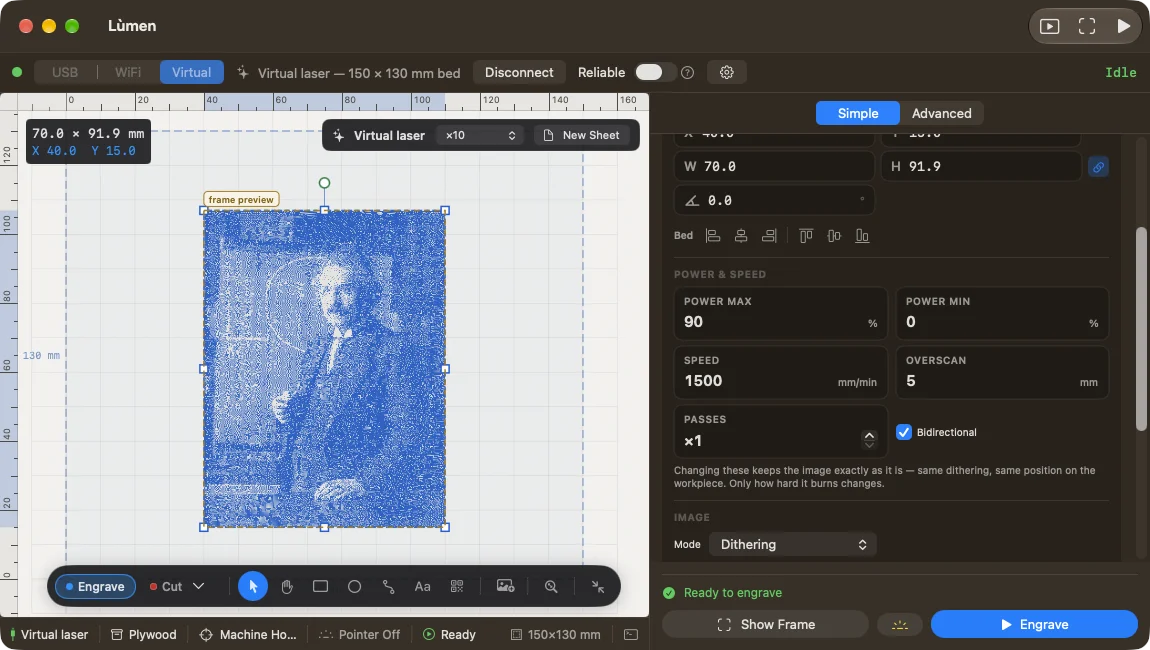
- POWER & SPEED: powers, speed, overscan, passes and bidirectional. They change how hard the laser burns, not the image: same dithering, same place on the piece.
- IMAGE: mode, dithering, threshold, brightness, contrast and resolution. They redraw the dots, and the canvas shows the result straight away.
PASSES repeat the whole image, one run after the other: several light passes char less than one hard one, but they take the time of all of them.
Before you engrave. Check the size and the place on the canvas, then look at the path with View ▸ Preview Job… (⇧⌘P). On the machine use Show Frame with the piece in place; on the virtual laser you can try the whole job on screen.