The virtual laser is a machine inside Lùmen: it runs the real job, streamed exactly as to an engraver, and burns it on the canvas. Nothing is sent to a machine. Use it to learn the app without a laser, and to try a project before you waste material.
1Connect it
From the welcome window choose Try the virtual laser: Lùmen connects it and, if the project is empty, opens an example project.
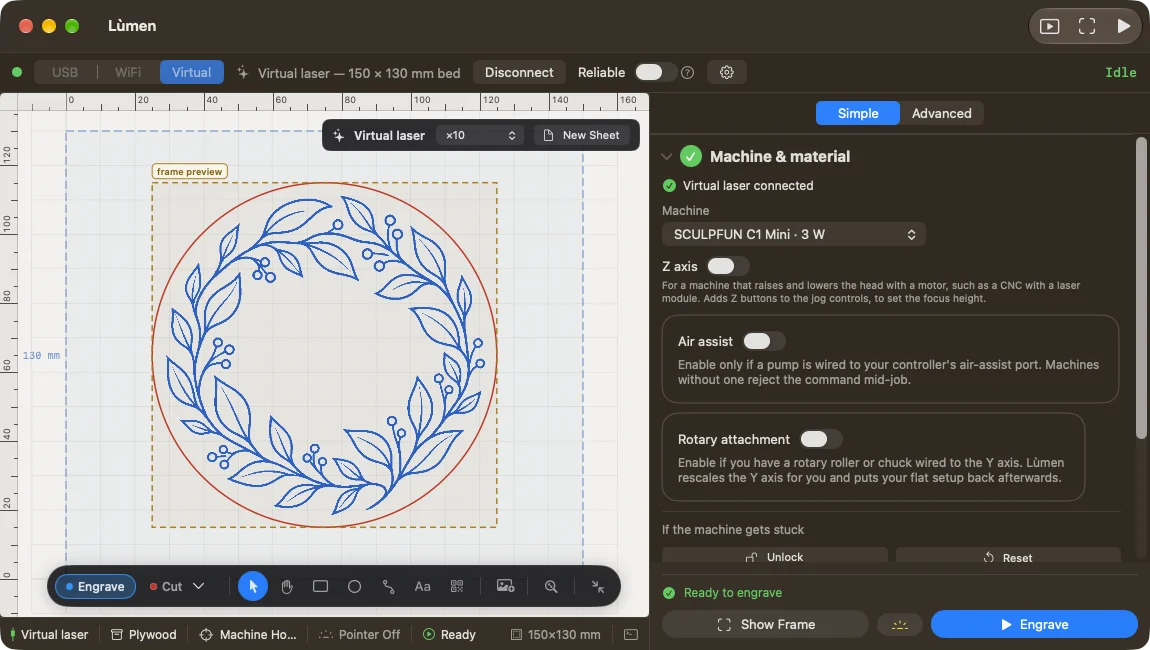
From the main window, choose Virtual in the top bar and press Connect. The Virtual laser panel appears on the canvas. If a real machine is connected, press Disconnect first: one connection at a time.
2Prepare a test job
- In Machine & material choose the machine to simulate: the virtual laser uses its bed and its top speed. If you change machine, the bed follows, and if the size changes a new sheet opens.
- Choose a material.
- In Design & cut open a starter project, import a design or draw a shape.
- In Position check the origin and that the design fits on the bed.
At the bottom of the panel Lùmen says what is missing before you can start: the connection, the material, at least one object and, with a custom origin, the starting point. If part of a cut is off the bed, the start is blocked and Lùmen tells you.
3Watch the frame, then the job
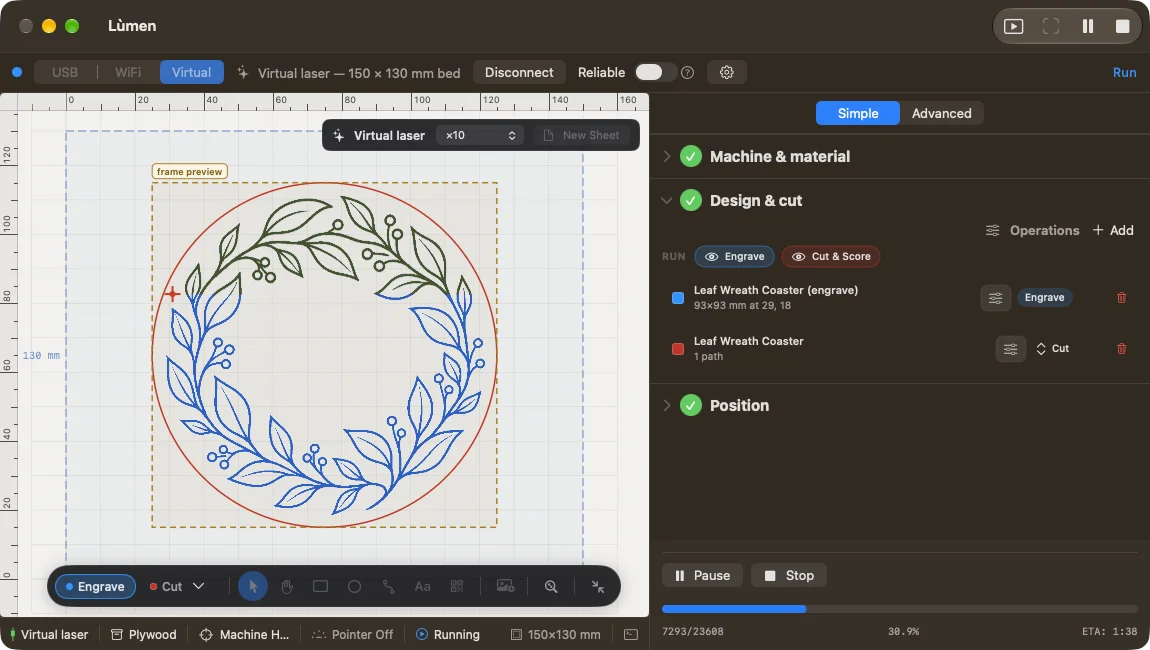
Press Show Frame: the virtual head traces the outline of the job. Then press the start button. After the countdown the head follows the project and the canvas shows the marks it leaves.
In the Virtual laser panel choose the speed: Real time to see how it would go on the machine, or ×2, ×5, ×10, ×20 or ×50 for a quick test.
4Try stopping and resuming
During the test use Pause and Stop. After Stop, Resume carries on from where you were, or Restart starts from the beginning. How it works on a real machine is in Start, pause and resume.
The virtual sheet keeps the marks of every test until you press New Sheet, which clears the marks, not the project’s objects. It is grey while a job runs.
Moving to the real machine. Press Disconnect, choose USB or WiFi and connect the controller. Check the machine, material, origin and placement again: the virtual laser shows the path, but the real mark depends on the material, the focus and the engraver. Virtual runs stay out of the job history and teach the real machine nothing: a zero you set in the simulation, for one, stays there.