Import an SVG or a DXF when you want the laser to follow lines and outlines. Lùmen reads the drawing’s colours and lets you choose what to do with each one: cut it, score it, engrave it or ignore it. That way one part of the drawing is engraved and another cut, from the same file. Projects saved by LightBurn come in the same way, layer by layer: see LightBurn projects below.
1Open the drawing
- Choose File ▸ Import SVG, DXF or LightBurn…, or Add ▸ Import SVG, DXF or LightBurn… at the top of the list of objects.
- Choose an
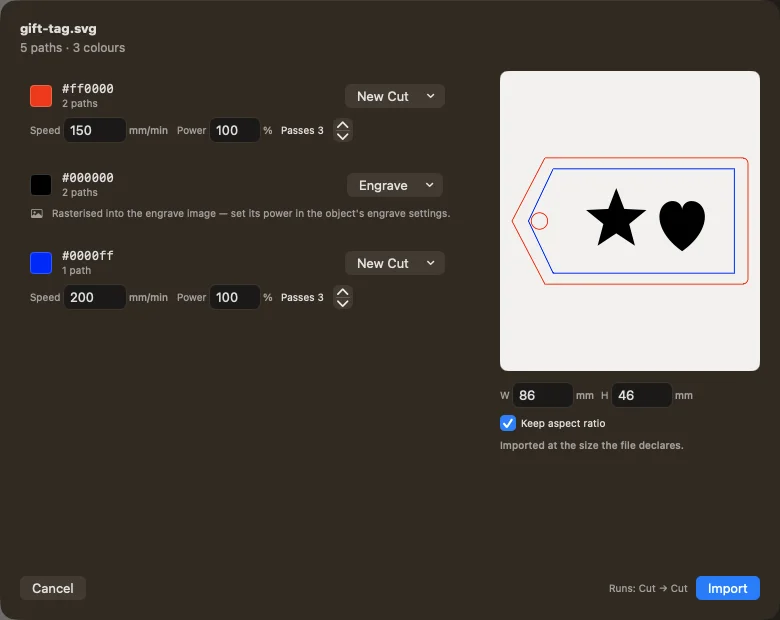
.svg,.dxf,.lbrn2or.lbrnfile. - In the window, check the preview and the size in millimetres. If the file declares a size, Lùmen uses it and says so; check that it is the size of the piece you want. Keep aspect ratio keeps width and height together.
A DXF must be ASCII: if your CAD program saved it as binary, export it again. Lùmen reads lines, arcs, circles, polylines, ellipses, splines and blocks, and converts the file’s units to millimetres. The DXF’s text, hatches and dimensions are not imported.
2Decide what to do with each colour
Each row of the window is one colour of the drawing, with the number of paths it holds. From the row’s menu choose:
- New Cut: a new cut operation for that colour;
- New Score: a new score, which follows the lines without cutting through;
- Engrave: that colour’s shapes become an image to engrave;
- Ignore: that colour is not imported;
- an operation already in the project, to add the paths to it with its values.
For a new cut or score, enter the speed, power and passes right in the row. Lùmen suggests engraving for filled areas with no outline and cutting for lines; if you have worked that colour before, it brings back the values you used. Check every row anyway: colours are the convention of whoever made the drawing, and say nothing about your material.
If the file has many colours and looks more like artwork than line work, Lùmen offers shortcuts: All → Engrave, All → one Cut and All → Ignore. You can still correct single rows afterwards.
3Import and check
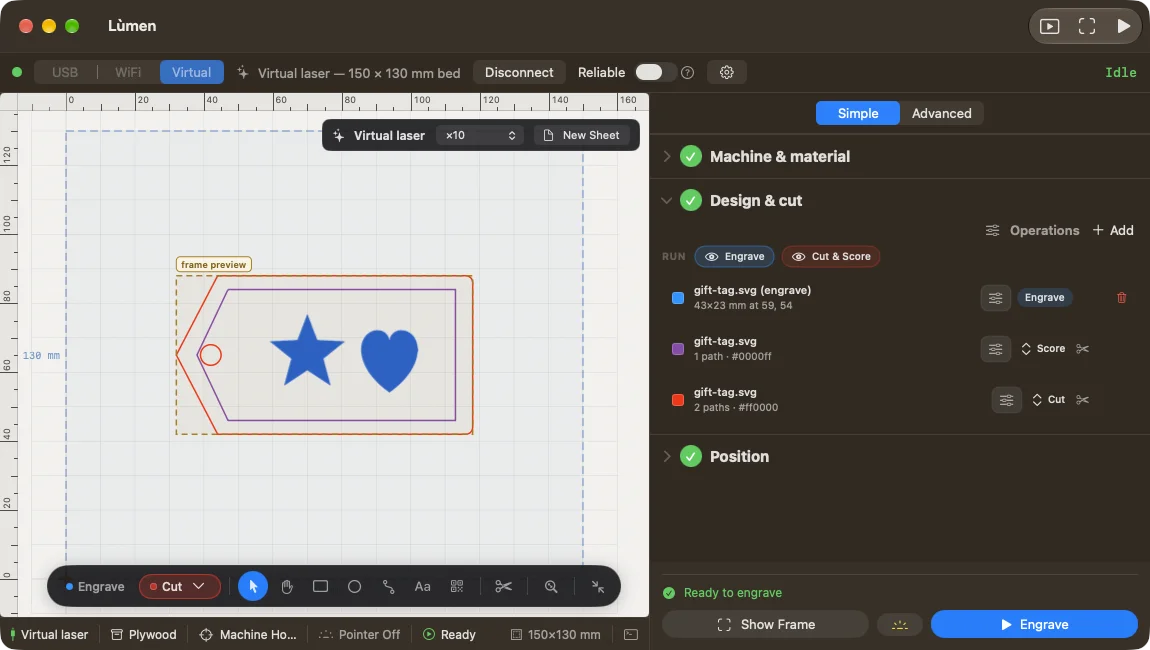
Press Import. In the list of objects, each part shows its operation: what is engraved is in the engrave pass, the rest in the score and cut operations. The job always runs engrave → score → cut, so a piece doesn’t come loose and shift before it is finished.
To change an operation afterwards, use the label in the object’s row or the Operations panel; the details are in Engrave, score and cut.
LightBurn projects
A project saved by LightBurn (.lbrn2, or .lbrn from older versions) opens in two ways:
- File ▸ Open… (⌘O) makes it a new project, in place of the one on the canvas;
- Import SVG, DXF or LightBurn… adds it to the project you have open.
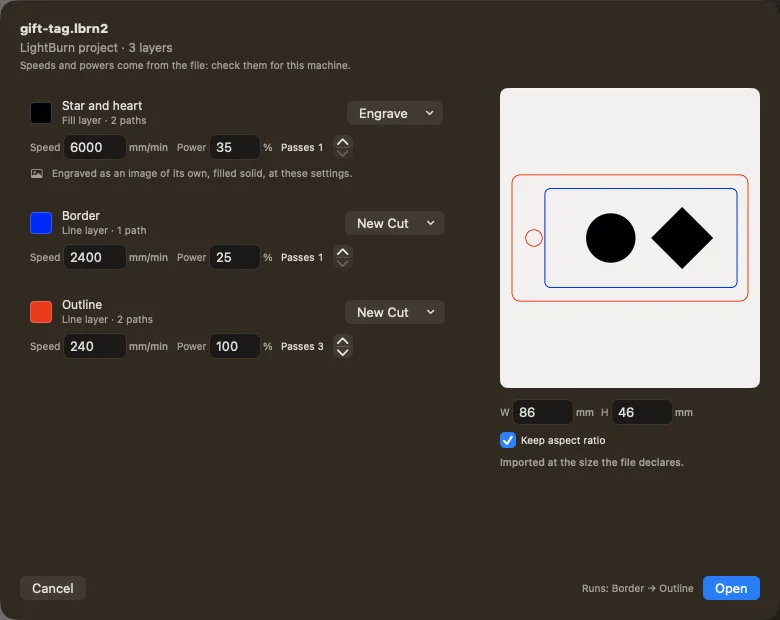
The window is the same as for an SVG, but each row is a LightBurn layer, with its name and with the speed, power and passes written in the file:
- a line layer becomes a New Cut;
- a fill layer becomes Engrave: an image of its own, at that layer’s settings and drawn in the layer’s colour, so the circles of a power and speed test stay told apart;
- a layer whose output was off in LightBurn, and the tool layers T1 and T2, arrive set to Ignore: they are in the project, but nothing burns until you give them an operation.
The speeds and powers are those of the machine the project was made for, and the window names it when the file says, so check them for yours: a row faster than your machine can go says so. Images arrive as images to engrave, with their layer’s mode, line spacing and power. Shapes, text, groups and images keep their layout and their size.
Texts that older versions of LightBurn saved without their outlines are drawn with your Mac’s fonts. The window lists them, and names any font this Mac doesn’t have, so you can check their size and place. Some LightBurn settings don’t come across: cross-hatch and angled fills (a fill is engraved as a plain fill), image adjustments such as gamma, tabs and kerf, and air assist per layer. Set what you need in Lùmen after the import; tabs and kerf are on each cut operation.
If the drawing doesn’t appear
If Lùmen says it found no drawable paths, the file probably holds only an embedded image and no lines: import it as an image, or redraw it as vectors. For a DXF, check that it is ASCII. If the size is wrong, fix the units in the program that exported the file rather than compensating by hand in Lùmen.