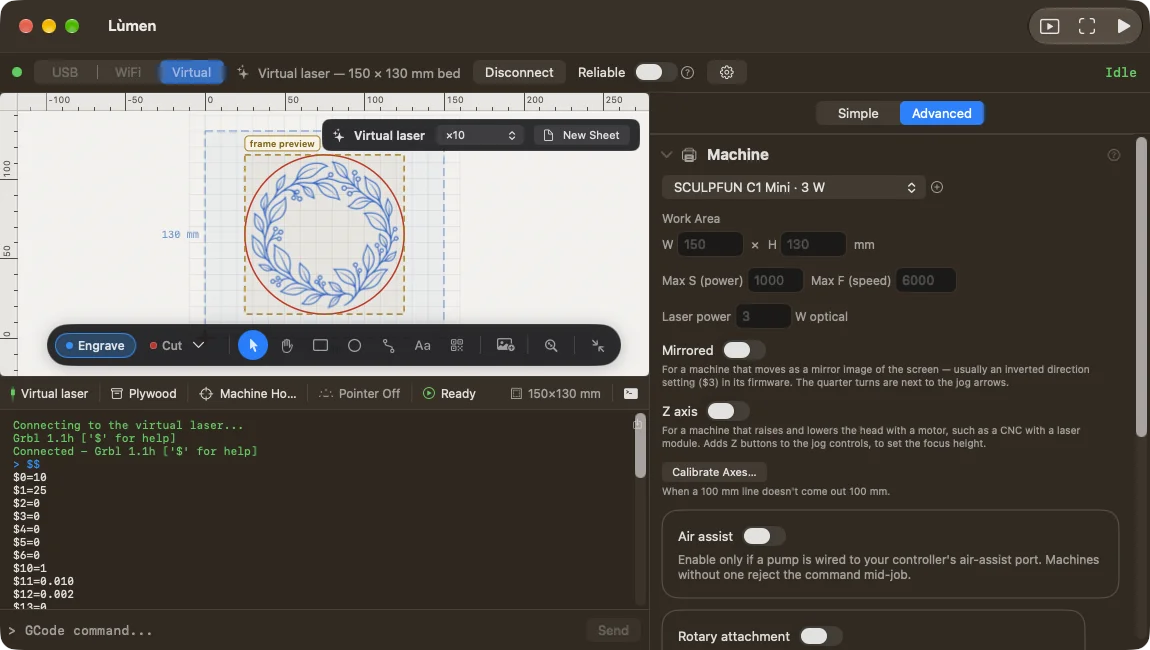
Start from what you see: the laser isn’t in the list, it is there but won’t connect, it raises an alarm, or a job stops halfway. The top bar shows GRBL’s state; the console shows what Lùmen sends and what the controller answers.
The laser isn’t in the list
- Switch the machine on (many boards only show up on USB with the power on) and check that the USB cable carries data: many cables are for charging only. Try another cable and another port on the Mac.
- Press ↻ next to the list. In Connection Settings (the gear) try Show all serial ports: normally Lùmen hides ports that don’t look like USB serial adapters.
- With a USB-C cable, also try going through a powered USB hub. Some boards lack the part a Mac needs to recognise a USB-C device plugged in directly: with the hub in between, they show up.
- If no port appears at all, the triangle next to the list (Laser not listed) opens a short help with these checks. A driver is rarely the cause: macOS drives the CH340, CP210x and FTDI chips most lasers use by itself. When the Mac sees your laser’s USB chip but no port appears, Lùmen says so under the connection bar: if macOS has no driver for that chip, Install Driver… opens the chip maker’s page; otherwise unplug the laser and plug it back in.
Until macOS sees a serial port, Lùmen can’t connect. Meanwhile you can prepare the project on the virtual laser.
It’s listed, but won’t connect
- Quit other programs that might be using the same port: a serial port opens in one program at a time.
- Check the baud rate in Connection Settings: almost every laser uses 115200, some handheld engravers 961200.
- Unplug the machine, plug it back in and try again.
- Over Wi-Fi, check the IP address and port (usually 23), and that the Mac and the machine are on the same network.
To switch from USB to WiFi or Virtual, press Disconnect first.
The machine is in alarm
When GRBL goes into ALARM it refuses every move until you unlock it. First find out why: the alarm’s number is in the console.
ALARM:1: a limit switch was hit during a move.ALARM:2: a move would have gone outside the work area set in the controller.ALARM:3: the controller was reset while moving; its position may no longer be right.ALARM:8andALARM:9: homing didn’t find or didn’t leave the limit switches. Check the cables and the switches.
Once the cause is fixed, press Unlock in the panel, or Machine ▸ Unlock Alarm (⌘U). After a limit or reset alarm, home the machine again before a job, if it can.
The job stalls
If Job stalled — no response from device appears, the controller has stopped acknowledging lines: the job isn’t finished. Check the cable, the power and the network, then press Stop and resume from the line you were on.
If it keeps happening with the same machine, try Reliable mode in the top bar: it sends one line at a time and recovers lost replies. On images it slows things down a lot and lightens the midtones, so use it only when you really need it.
The console
Open the console from the last icon in the status bar, at the bottom. The log tells sent commands, replies, errors and status messages apart; the Save log to file button, in the corner, saves it as text, which helps if you write to support.
From the console you can also send G-code and GRBL commands, with the machine connected and no job running. A command typed there goes straight to the controller: if you aren’t sure what it does, use the app’s buttons.
If you can’t work it out. Write to us at support@lumenlaser.app with the machine’s model, what you see and the saved console log: with that we can almost always tell where it gets stuck.