Before you start, decide which point of the machine is the project’s zero, that is, where the job starts. Then Show Frame has the head trace the outline of the job, so you see where it will land on the piece before anything burns.
1Choose the origin
Open Position (in Advanced, Work Origin). There are two ways:
- Machine Home: at the start the machine homes on its limit switches and starts from its corner. The canvas is the machine’s real bed. It needs a machine with limit switches.
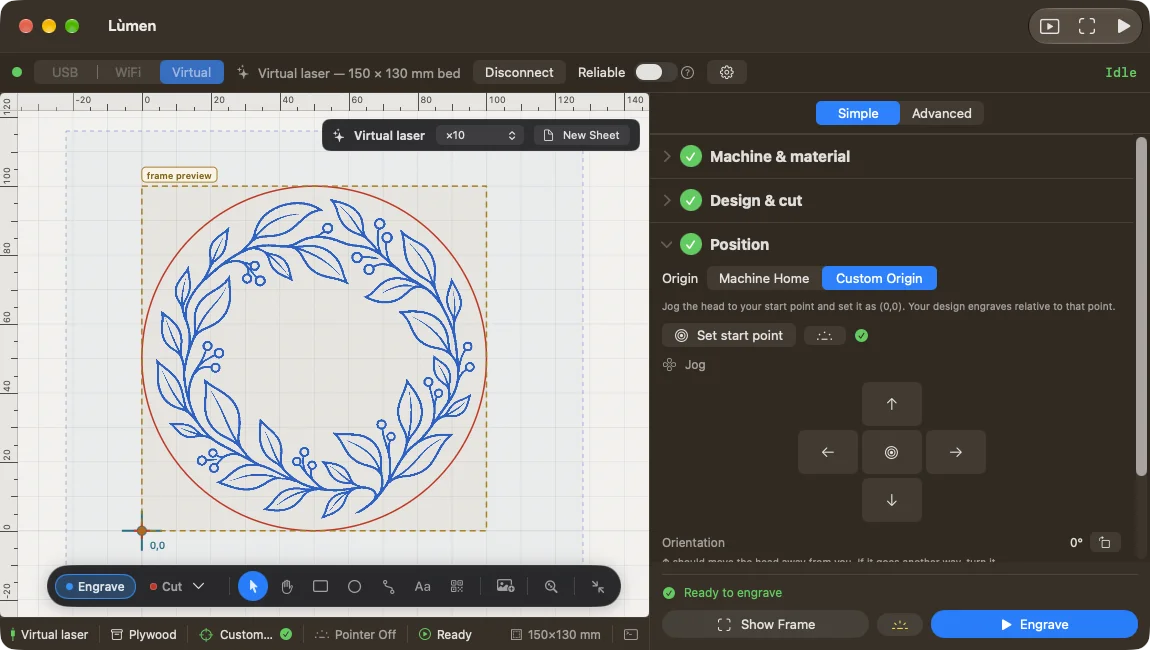
- Custom Origin: the zero is wherever you put the head. Move it with the jog arrows and press Set start point (in Advanced, Set Zero Here). The cross on the canvas is that point, and the canvas shows the project around it exactly as it will be engraved.
2Move the head
Before you move, check that the arrows match the machine in front of you: the up arrow should move the head away from you. If it doesn’t, the ↻ button next to the arrows turns the machine a quarter turn with each click. Choose a small Step to get close to the right spot and press one arrow at a time.
To see where you are on the piece, turn on the laser pointer: a dot at very low power. Lùmen turns it off by itself after 30 seconds without a jog move; each move starts the count again.
Homing and zero, together
If the machine has limit switches, home it before you set the zero: from then on every job homes again and goes back exactly to your zero, even if you bumped the head in the meantime. If you set the zero without homing, Lùmen treats it as a guess: the canvas draws the reachable bed in amber, labelled as not measured, and the start asks you about it once.
If the machine can’t home, Lùmen switches to Custom Origin by itself when it connects: without limit switches its corner would only be where the head was at power-on.
3Bring the design to the zero
With Custom Origin, if the design sits far from the cross, the head travels that distance before it engraves. The panel tells you how far off it is, and Move design to zero puts the project’s bottom-left corner on the cross, every object together. If the distance is meant to be there, leave it. New objects are born on the zero already.
With a rotary attachment the design is centred on the object’s crest instead: follow that procedure.
4Show Frame
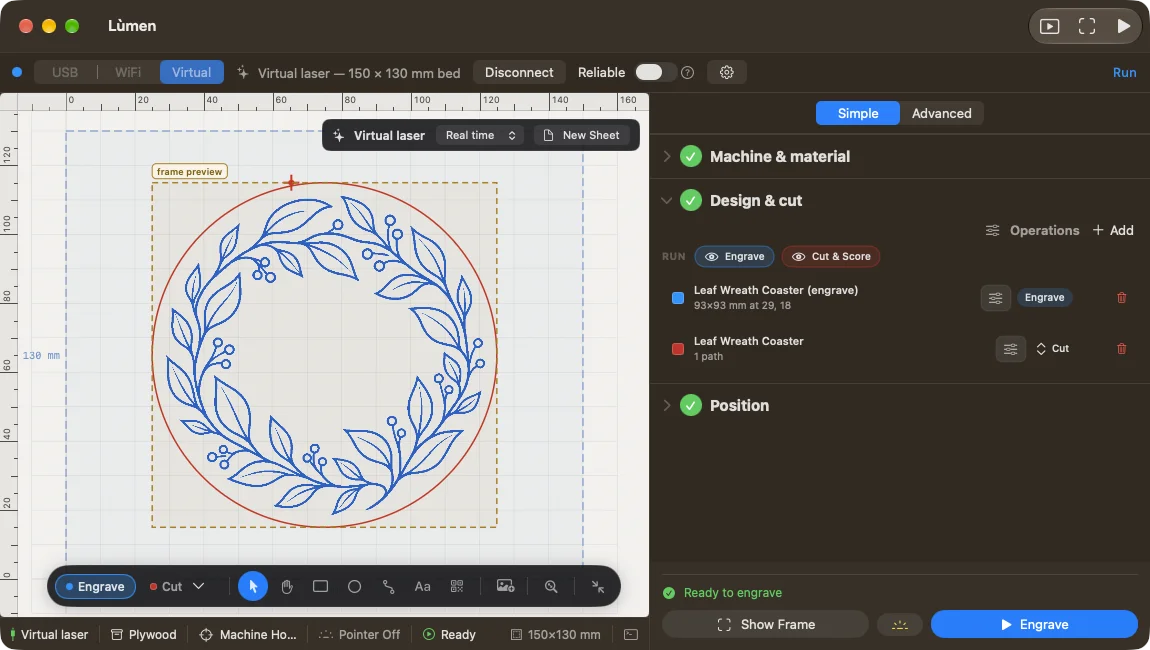
With the machine connected, press Show Frame at the bottom of the panel. The head traces the rectangle that holds the job, at a moderate speed; with Machine Home it homes first. The sun button next to it chooses whether to trace with the laser dot on at low power or with the laser off.
Check that the whole outline lands on the piece. If it doesn’t, move the design, the origin or the piece, and frame again.
If the job goes off the bed
Lùmen treats engraving and cutting differently. An engraving that goes off the bed is trimmed at the edge: the part inside is engraved, the part outside isn’t. A cut that goes off the bed blocks the start instead, with a message asking you to move it inside: a half-finished cut ruins the piece. The preview shows the stretches off the bed in orange.
The laser dot is real light. Even at low power, don’t look at it without protection, and keep your hands away from the head while it moves. Before you touch the piece, check that the laser is off.